
Most leads do not disappear because they hated your offer.
They disappear because somebody called once, heard a voicemail greeting, and decided the universe had spoken.
That is not a sales process. That is a weather report.
In this guide, we are going to build an AI sales rep that follows up after an unanswered call using:
- JustCall for calling and SMS
- HubSpot as the source of truth, workflow engine, and tracked email sender
- Claude for writing useful, context-aware follow-up messages
The finished system will send an immediate text after an unanswered call, then follow up at 2 business days, 5 business days, 10 business days, and 30 calendar days from the original call.
It will also stop when the lead replies, books, opts out, or moves to a stage where another message would make you look like a vending machine with a LinkedIn profile.
The simple analogy: HubSpot is the calendar, JustCall is the phone, and Claude is the rep writing the message. Do not make Claude hold the calendar. Golden retrievers are wonderful, but you still would not ask one to run payroll.
The Fast Cash Is on the Call. The Real Revenue Is in the Follow-Up.
The easiest sale is the bottom-of-funnel lead who answers the phone, understands the problem, has the budget, and is ready to move.
That lead is fast cash. Wonderful. Shake their hand, ring the bell, buy the tiny office gong.
It is also a very small portion of the opportunity you already paid to create.
The rest of the revenue is sitting with people who have the need but not the perfect timing. They may have been driving when you called. They may be waiting for cash flow. They may need a partner's approval. They may have opened your email during a meeting, mentally promised themselves they would reply later, and then returned to the part-time job every adult has called forgetting things.
This is why one unanswered call is not a sales process. It is one data point.
About the famous “five follow-ups” statistic
You have probably seen the claim that 80 percent of sales require at least five follow-ups. It appears on thousands of sales blogs. The problem is that the original study behind that exact percentage cannot be reliably identified. A recent source audit of the claim traced it to an article that named no study, research company, sample, or year.
So we are not going to put a lab coat on internet folklore and invite it into the board meeting.
The stronger directional evidence still makes the same practical point. XANT's lead-response research examined more than 15,000 leads and 100,000 call attempts. It recommended at least six call attempts and reported that making a few additional attempts produced 70 percent more contacts. That supports persistence in reaching leads. It does not prove that every buyer must reject you five times before purchasing.
Source: XANT Lead Response Management research
The honest conclusion is simpler:
Many qualified opportunities require more follow-up than most salespeople consistently perform.
“No” has several meanings
A lead can say no in several different ways:
- “Not this month” means timing.
- “Cash is tight” means cash flow.
- “I need to speak with my partner” means authority or consensus.
- “This is not a priority yet” means competing priorities.
- “We do not need this” may mean the discovery was wrong or the fit is weak.
- “Stop contacting me” means stop contacting them. Immediately.
The first four can mean no right now, not no forever. That is especially true when your discovery confirmed a real need, the problem has an economic cost, and the lead agreed that solving it matters.
This does not give the AI permission to argue, guilt, pressure, or stalk somebody across the internet like a raccoon that learned HubSpot. It gives the system permission to remember the objection, wait an appropriate amount of time, and return with one useful next step.
Good follow-up sounds like:
“You mentioned timing was the issue. Has anything changed, or should I check back next quarter?”
Bad follow-up sounds like:
“Just bumping this to the top of your inbox for the seventh time because apparently neither of us deserves peace.”
What follow-up can do to revenue
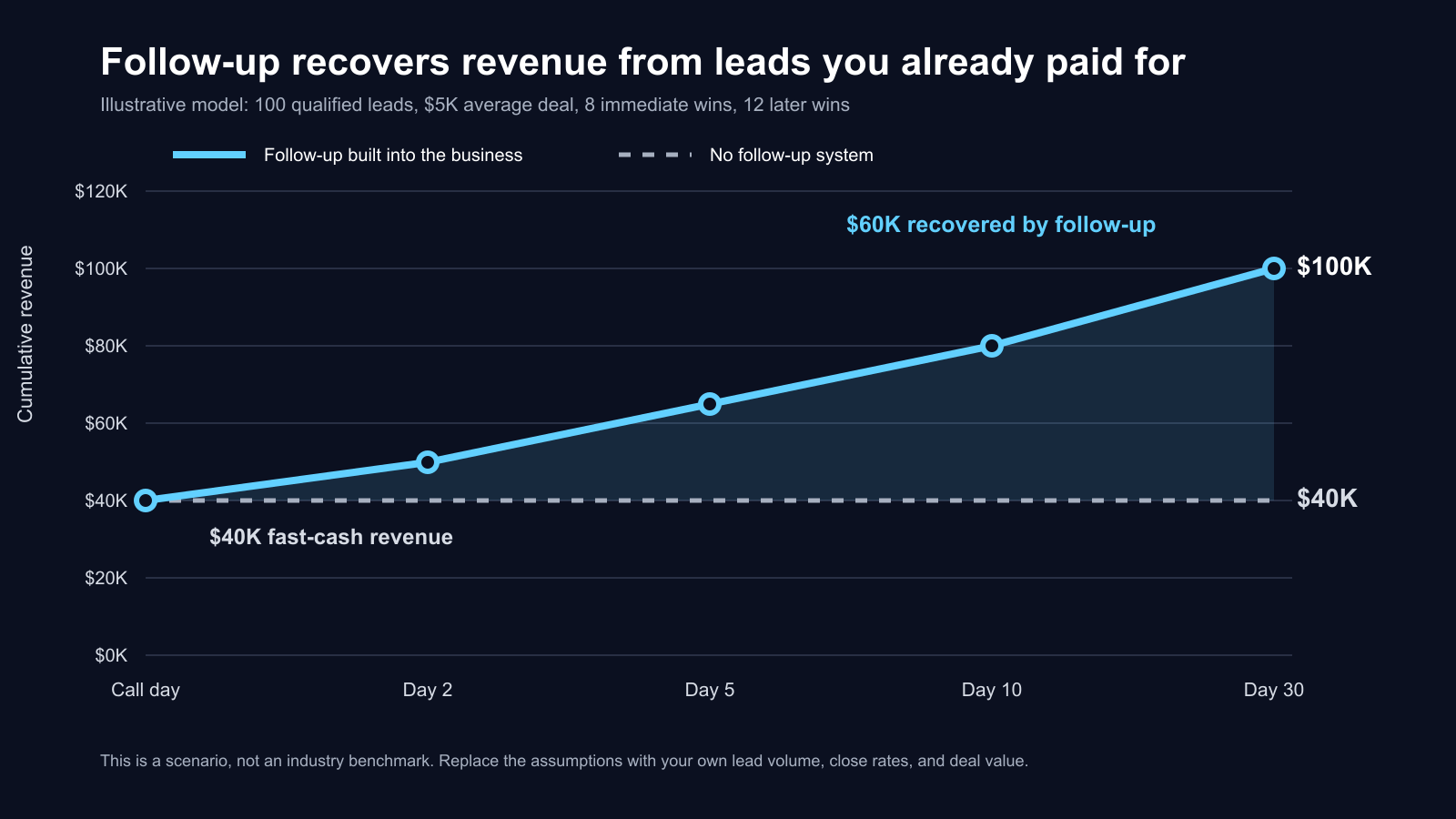
The chart below is an illustrative model, not an industry benchmark. It assumes 100 qualified leads, a $5,000 average deal, 8 immediate wins, and 12 additional wins during a structured 30-day follow-up cadence.
| Revenue source | Deals | Average deal | Revenue |
|---|---|---|---|
| Immediate bottom-of-funnel wins | 8 | $5,000 | $40,000 |
| Wins recovered through follow-up | 12 | $5,000 | $60,000 |
| Total with structured follow-up | 20 | $5,000 | $100,000 |
In this example, both companies generated the same 100 qualified leads. Both spent the same money acquiring them. Both collected the same $40,000 in fast cash.
The company without follow-up stopped there.
The company with follow-up recovered another $60,000 from opportunities already sitting inside the CRM. No extra leads. No new ad budget. No ceremonial sacrifice to the algorithm. Just a process that remembered to do the work.
Use this formula with your own numbers:
Immediate revenue = immediate wins x average deal value

Follow-up revenue = later wins x average deal value

Total revenue = immediate revenue + follow-up revenue
If your CRM cannot tell you those three numbers, that is the first problem to fix. Otherwise, your forecast is just optimism wearing a quarter-zip.
What You Are Building
The system follows one small loop:
Unanswered call
      |
      v
HubSpot enrolls the lead
      |
      v
Claude writes the next message
      |
      +----> JustCall sends the SMS
      |
      +----> HubSpot sends the tracked email
      |
      v
Wait until the next follow-up date
      |
      v
Check for reply, booking, opt-out, or stage change
      |
      +----> Stop if the lead engaged
      |
      +----> Continue if the lead is still quiet
Claude does not decide whether your business is legally allowed to contact somebody. It does not invent discounts. It does not keep sending because it has developed the confidence of a junior banker holding a color-coded spreadsheet.
Claude gets a narrow job: write the next message from approved CRM data.
The Fastest Setup: Give Your AI This URL
You do not need to convert this article into a weekend of clicking and muttering at dropdown menus.
Open Claude, ChatGPT, Codex, or another AI assistant with browser or computer access. Paste the prompt below. The assistant will read this article, inspect the tools you already use, and help build the system with you.
Open and read this full setup guide:
https://sevedgebuilds.com/blog/how-to-create-ai-sales-rep-follow-up

Treat that article as the operating specification for this project.

Your job is to help me build the system, not merely explain it.

First ask what CRM, calling and texting platform, email platform, automation platform, HubSpot plan, JustCall account, and Claude or Anthropic access I already have. Reuse my existing tools whenever they can meet the requirements.

Then:
1. Inspect the accounts and browser screens I already have open.
2. Propose the simplest setup route.
3. Verify plan requirements using current official documentation.
4. Build the article's properties, cadence, Claude instructions, sending actions, stop conditions, objection routing, and test plan.
5. Keep every workflow disabled until the internal test passes.
6. Give me exact clicks and field values. If you have browser control, perform the steps I authorize.
7. Ask me to take over for passwords, MFA, CAPTCHAs, payment, and secret entry.
8. Pause for confirmation before OAuth, saving an API key, sending any test message, publishing a workflow, or enrolling a real contact.
9. Use only an internal contact I control during testing.
10. Do not claim a connection, message, stop condition, or workflow works until you verify the evidence.

Begin by asking only the questions needed to choose the setup route.
That is the whole handoff. The prompts in each step below let you run one phase at a time if you prefer to keep a hand on the wheel.
Before You Start
You need:
- A JustCall account with an SMS-capable number.
- A HubSpot account with access to workflows.
- An Anthropic API account if you plan to use HubSpot's native custom LLM workflow action.
- Permission to contact the leads by SMS and email.
- One internal test contact that belongs to you or your team.
Plan requirements matter
HubSpot currently documents its Use a custom LLM workflow action, including Anthropic, for Enterprise subscriptions. If your HubSpot plan does not include that action, use one of these routes:
- Use Claude to write approved templates, then let HubSpot and JustCall send them.
- Use an automation platform such as n8n, Make, Zapier, or Pipedream to call Claude and write the result back to your CRM.
- Use a small serverless endpoint that calls the Anthropic API and updates the CRM record.
The architecture stays the same. Only the bridge between the CRM and Claude changes.
If you use a different CRM, the setup file at the bottom of this article tells the AI assistant to ask which platform you already use before it touches anything.
Step 1: Connect JustCall to HubSpot
Paste this into your browser-enabled AI:
Using the setup guide at https://sevedgebuilds.com/blog/how-to-create-ai-sales-rep-follow-up, inspect my CRM and calling platform and prepare the integration described in Step 1.

First confirm which accounts and workspaces are open, whether an integration already exists, which phone number should send SMS, and how users should map to CRM owners. Show me the proposed connection and settings before changing anything.

If I approve, guide me through the exact clicks or perform the authorized steps. Pause before OAuth confirmation. I will handle passwords, MFA, CAPTCHAs, and secret entry. After connection, verify unanswered-call logging, SMS logging, contact and deal association, number selection, and user mapping. Return the evidence for each check. Do not send a message yet.
The screens and settings below are the specification your AI should follow.
In JustCall, open Integrations, choose All Integrations, search for HubSpot, and select Integrate.
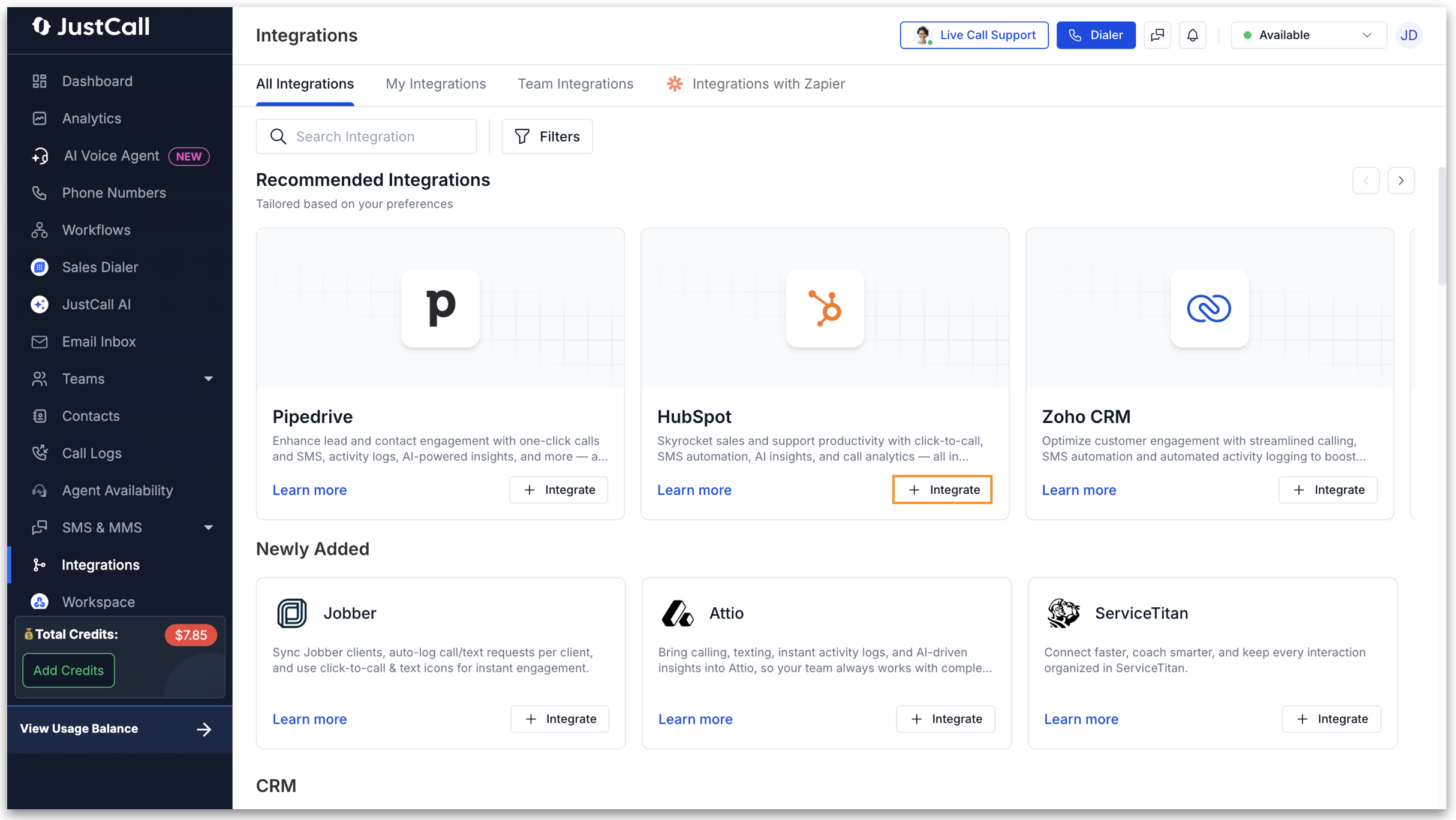
Screenshot: Find HubSpot inside JustCall's integrations page. Source: JustCall's official integration guide.
JustCall will redirect you to HubSpot so you can choose the correct account.
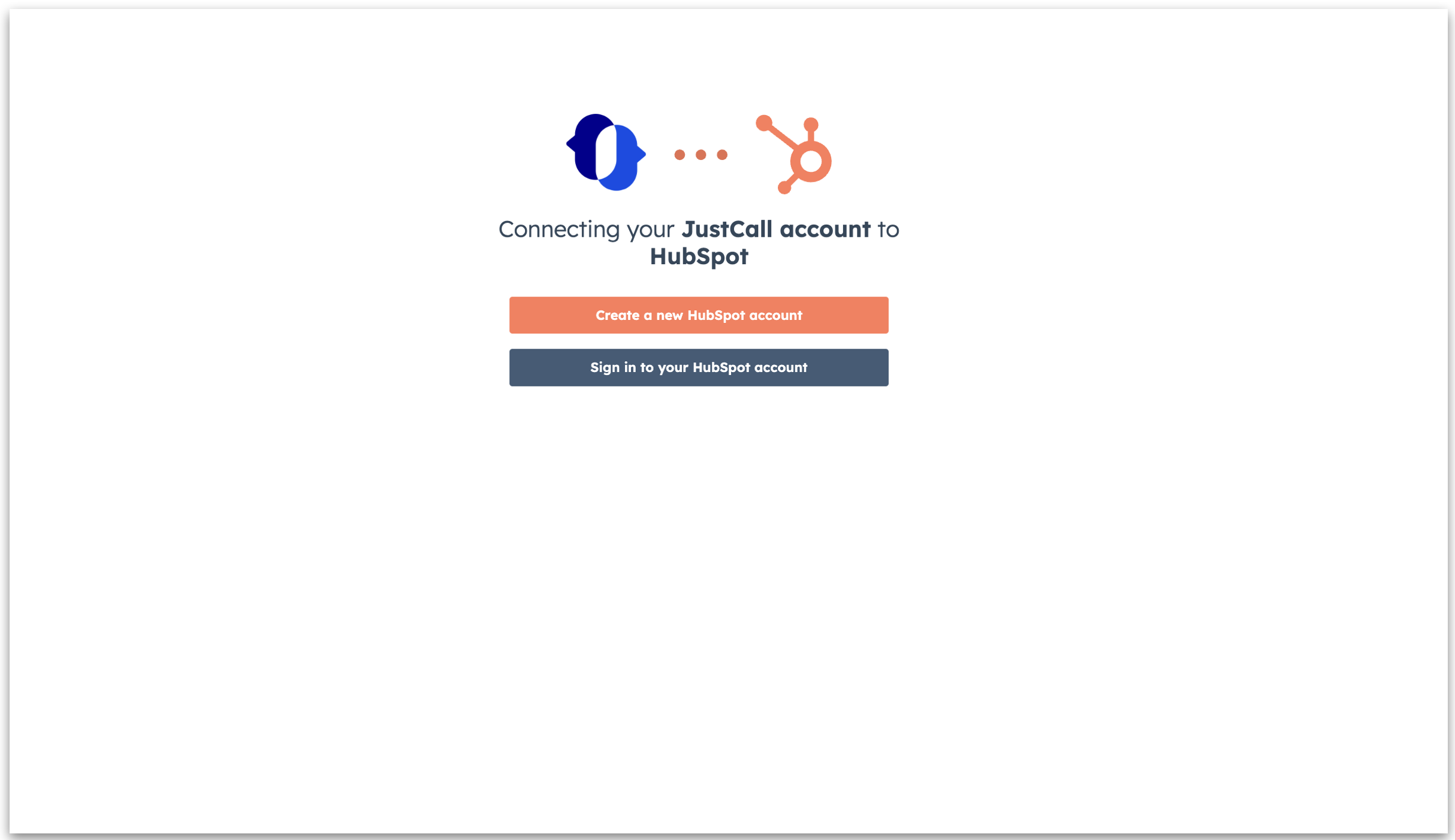
Screenshot: Select the HubSpot account you want JustCall to use.
Review the requested permissions, then connect the app.
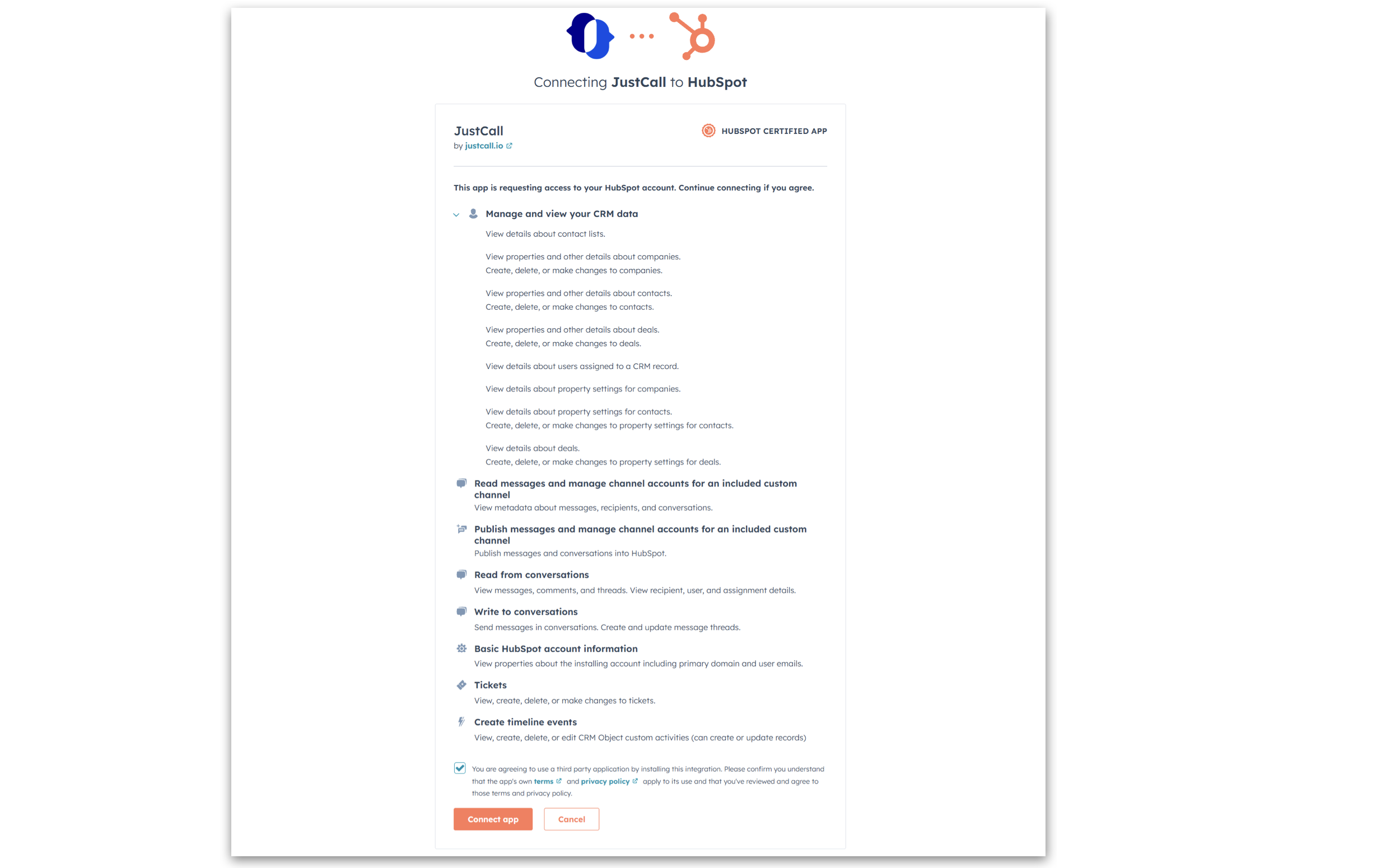
Screenshot: HubSpot's Connect app authorization step.
After connecting, return to JustCall and configure the integration.
Turn on the settings needed to:
- Log unanswered outbound calls in HubSpot
- Log incoming and outgoing SMS activity
- Log communication against the associated contact and deal
- Sync the JustCall number you plan to use
- Map JustCall users to the correct HubSpot users
JustCall documents that calls and messages can be logged against contacts, companies, deals, and tickets depending on your settings. It also notes that workflow-triggered outbound SMS messages may not appear like manually sent SMS in every activity view, although replies are logged. Test the exact behavior in your account before trusting the timeline with your life, your pipeline, or your quarterly forecast.
Official references:
- How to integrate JustCall with HubSpot
- Configure HubSpot integration settings in JustCall
- JustCall and HubSpot logging behavior
Step 2: Create the CRM Properties
Paste this into your browser-enabled AI:
Using the setup guide at https://sevedgebuilds.com/blog/how-to-create-ai-sales-rep-follow-up, open my CRM and create or map every field listed in Step 2.

Before making changes:
1. Confirm the CRM and account.
2. Check whether equivalent fields already exist.
3. Show me the proposed field names, types, dropdown options, and mappings.
4. Ask for approval.

After approval, create only the missing fields. Do not create duplicates. Then return a table showing each required field, its final CRM name, type, and status. Keep the workflow disabled.
Your AI should create or map this exact data model:
Create these contact properties in HubSpot before building the workflow:
| Property | Type | Purpose |
|---|---|---|
AI Follow-Up Active | Checkbox | Master on or off switch for the contact |
AI Follow-Up Stage | Number or dropdown | Stores 0, 2, 5, 10, or 30 |
AI Follow-Up Started At | Date and time | Anchors the cadence to the original call |
AI Follow-Up Stop Reason | Dropdown | Reply, booked, opted out, disqualified, closed, manual |
AI Follow-Up SMS | Multi-line text | Stores Claude's approved SMS output |
AI Follow-Up Email Subject | Single-line text | Stores the next email subject |
AI Follow-Up Email Body | Multi-line text | Stores the next email body |
AI Follow-Up Last Sent At | Date and time | Supports auditing and troubleshooting |
AI Follow-Up Manual Stop | Checkbox | Gives a human a large red brake pedal |
Latest Objection Category | Dropdown | Timing, cash flow, authority, priority, no need, competitor, or hard no |
Next Eligible Follow-Up Date | Date | Schedules a respectful return after a soft no |
Why store the AI output in properties?
Because it gives you a paper trail. You can see what Claude wrote before or after it was sent, debug bad output, and report on the process. Otherwise, you have built a little ghost in your CRM. Ghosts are notoriously poor at quarterly reviews.
Step 3: Connect Claude to the Workflow
Paste this into your browser-enabled AI:
Using Step 3 of https://sevedgebuilds.com/blog/how-to-create-ai-sales-rep-follow-up, determine the simplest supported way for my CRM to use Claude.

Inspect my CRM plan and existing automation tools. Verify current plan requirements from official documentation. Prefer my existing stack. Show me the route, expected cost, data passed to Claude, output fields, and approval gates before changing anything.

After I approve, create the Claude action or integration in a disabled workflow. Use the exact approved prompt in Step 3. Ask me to enter any API key directly into the secure field, and pause before saving it. Map the SMS, email subject, and email body outputs to their CRM properties. Test with invented internal sample data only, then show the saved configuration and output evidence.
The route and approved Claude instructions follow.
If your HubSpot subscription includes Use a custom LLM:
- Open Automation > Workflows.
- Create a contact-based workflow.
- Add an action.
- Open the AI section.
- Choose Use a custom LLM.
- Choose Anthropic as the provider.
- Connect the Anthropic API account.
- Select a Claude model.
- Add the approved prompt from the next section.
- Save the action output into your AI follow-up properties.
HubSpot's current documentation says the action can connect to Anthropic using an API key and pass the model output into later workflow actions. Treat the key like a key, not like a fun little code to paste into Slack. Store it only in the secure connection field.
Official reference: Create and use custom LLM workflow actions
The Claude prompt
Use a narrow prompt. Narrow prompts are guardrails. Wide prompts are how you wake up with seventeen exclamation points and an invented testimonial.
You are the follow-up writer for {{company_name}}.

Your job is to write the next sales follow-up using only the CRM data provided.

INPUTS
First name: {{contact.firstname}}
Company: {{contact.company}}
Follow-up stage: {{contact.ai_follow_up_stage}}
Call outcome: {{contact.last_call_outcome}}
Call summary: {{contact.last_call_summary}}
Known need: {{contact.known_need}}
Known objection: {{contact.known_objection}}
Previous message: {{contact.previous_follow_up_message}}
Booking URL: {{owner.meeting_link}}

RULES
1. Never invent a fact, result, relationship, discount, deadline, or prior conversation.
2. Do not say or imply that you saw the person open an email.
3. Use plain language and one clear next step.
4. Do not use em dashes.
5. SMS must be under 320 characters.
6. Email body must be under 120 words.
7. Keep the tone calm, useful, warm, and direct.
8. Do not use pressure, fake scarcity, guilt, or manipulative language.
9. If the record shows a reply, booking, opt-out, disqualification, or manual stop, return STOP instead of a message.
10. For the first SMS, identify the company and include the required opt-out language.
11. Never argue with a rejection. If the objection is timing, cash flow, authority, or priority, acknowledge it and suggest an appropriate future check-in. If it is a hard no or opt-out, return STOP.

Write only the requested output. Do not explain your reasoning.
For the cleanest workflow, use separate Claude actions for:
- SMS copy
- Email subject
- Email body
That costs a little more, but it removes the need to parse one giant response. It is the automation equivalent of putting forks in one drawer and batteries in another. Civilization survives another quarter.
Step 4: Build the Follow-Up Cadence
Paste this into your browser-enabled AI:
Using Step 4 of https://sevedgebuilds.com/blog/how-to-create-ai-sales-rep-follow-up, build the follow-up cadence in my CRM as a disabled workflow.

Anchor every touch to the original unanswered call. Configure an immediate touch, then touches at 2 business days, 5 business days, 10 business days, and 30 calendar days. Do not accidentally make the delays additive. Use the account timezone unless a reliable contact timezone is available.

Before saving, show me the proposed enrollment rule, each delay, each channel, and the exact timestamp each touch would reach for one sample call. Ask for approval. After approval, build it and return a workflow map plus evidence that the five dates are correct. Do not enroll a real contact.
These are the exact timing rules:
These times should be measured from the original unanswered call:
| Touch | Target time from call | Channel |
|---|---|---|
| 1 | Immediately | SMS, optionally email |
| 2 | 2 business days | SMS and tracked email |
| 3 | 5 business days | SMS or tracked email |
| 4 | 10 business days | Tracked email, optional SMS |
| 5 | 30 calendar days | Final check-in |
This is important: the timing is not additive.
If you add a 2-day delay, then a 5-day delay, then a 10-day delay, your “10-day follow-up” arrives on day 17. At that point it is less of a cadence and more of a historical documentary.
Anchor every touch to AI Follow-Up Started At, or use the equivalent cumulative gaps:
- Immediate
- Wait 2 business days
- Wait 3 more business days to reach business day 5
- Wait 5 more business days to reach business day 10
- Delay until 30 calendar days from the original call date
HubSpot supports set-time delays and a Business days only option. Use the account timezone unless you have a reliable contact timezone property.
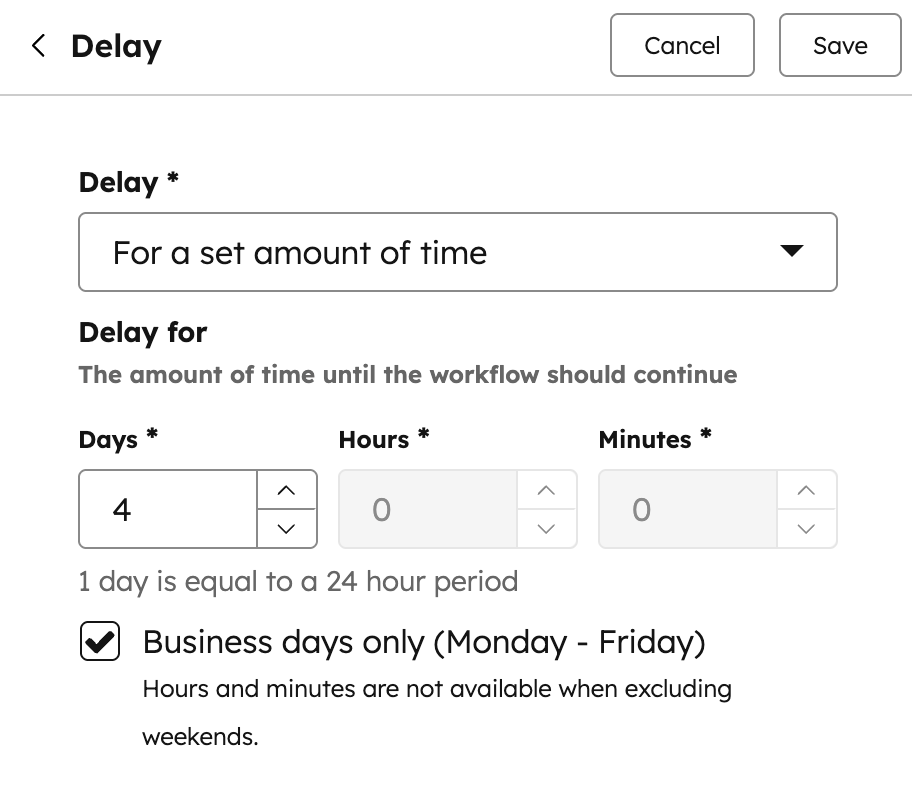
Screenshot: HubSpot's business-day delay configuration. Source: HubSpot's official workflow delay guide.
Recommended workflow shape
ENROLLMENT
Last call outcome = No answer
AND AI Follow-Up Active = Yes
AND phone number is known
AND manual stop is not Yes

IMMEDIATE CHECK
Has replied, booked, opted out, or changed stage?
  Yes -> Stop
  No  -> Claude writes touch 1 -> JustCall sends SMS

2 BUSINESS DAYS FROM CALL
Run stop check
Claude writes touch 2
JustCall sends SMS
HubSpot sends tracked email

5 BUSINESS DAYS FROM CALL
Run stop check
Claude writes touch 3
Send the selected channel

10 BUSINESS DAYS FROM CALL
Run stop check
Claude writes touch 4
HubSpot sends tracked email

30 CALENDAR DAYS FROM CALL
Run stop check
Claude writes final check-in
Send once
Set AI Follow-Up Active = No
Step 5: Send SMS Through JustCall
Paste this into your browser-enabled AI:
Using Step 5 of https://sevedgebuilds.com/blog/how-to-create-ai-sales-rep-follow-up, configure the disabled workflow to send its SMS through my approved JustCall number.

Map the recipient, sender, and AI Follow-Up SMS property exactly. Verify the first message identifies the business, includes the required opt-out language, and stays within the article's length rule. Show me the complete action configuration before saving it.

After I approve, save the action but do not send anything. Prepare one internal test message and pause again before the send. If I approve the test, send only to the internal number I confirm, then verify delivery and CRM logging.
The action should match this configuration:
Inside the HubSpot workflow:
- Click the plus icon where the SMS should be sent.
- Search for JustCall.
- Choose Send a text message or Send SMS as HubSpot Contact Owner.
- Map the destination to the contact's phone property.
- Insert
AI Follow-Up SMSas the message content. - Select the correct sending number.
- Save the action.
JustCall supports sending SMS directly from HubSpot workflows. Its documentation also supports personalization using contact fields.
Official reference: HubSpot SMS automation with JustCall
Example immediate SMS
Hi {{first_name}}, Nathan from Sevedge Builds here. I just tried you. No emergency and no carrier pigeon involved. Want me to send the quick overview here, or is email easier? Reply STOP to unsubscribe.
Example day-5 SMS
Hi {{first_name}}, quick check-in on {{known_need}}. I can send the two-minute version or leave you in peace. Which would be more useful?
Claude should adapt these to the record. The workflow should still enforce the length, consent, identity, and stop rules.
Step 6: Send Tracked Email Through HubSpot
Paste this into your browser-enabled AI:
Using Step 6 of https://sevedgebuilds.com/blog/how-to-create-ai-sales-rep-follow-up, configure tracked email in my disabled CRM workflow.

Inspect the available email action, sender, domain, subscription type, tracking settings, and permission status. Map the AI-generated subject and body properties as personalization tokens. Show me the proposed email and configuration before publishing the email asset.

After I approve, create or update the automated email but keep the workflow disabled. Prepare a test to an internal inbox I control and pause before sending. After an approved test, verify delivery, personalization, open tracking, click tracking, and CRM activity. Treat opens as a soft signal, never as proof that the person read the message.
The HubSpot setup should follow these requirements:
Create an automated email from the workflow editor:
- Add a workflow action.
- Open Communications.
- Choose Send email.
- Create or select the automated email.
- Insert the AI-generated subject and body properties as personalization tokens.
- Review the sending domain and tracking settings.
- Publish the email, but keep the workflow itself off until testing is complete.
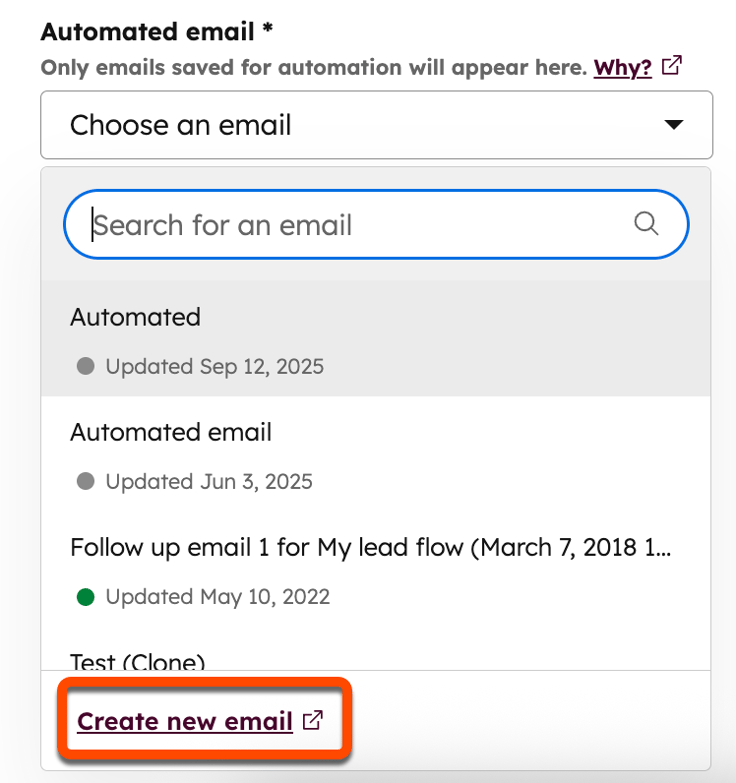
Screenshot: Create an automated email from a HubSpot workflow. Source: HubSpot's official automated email guide.
HubSpot can track opens and clicks by adding a tracking pixel and tracked links. Opens are useful, but they are not courtroom evidence. Image blocking and privacy features can prevent or distort open tracking.
Use an open as a soft signal. Do not write, “I saw you opened my email six minutes ago.” That sentence has the warmth of a security camera.
Official references:
Step 7: Build the Stop Conditions
Paste this into your browser-enabled AI:
Using Step 7 of https://sevedgebuilds.com/blog/how-to-create-ai-sales-rep-follow-up, add stop logic and objection routing to my disabled workflow.

Before every Claude action and every send, check for SMS reply, email reply, booked meeting, opt-out, manual stop, protected deal stage, invalid contact data, or human ownership. Configure workflow unenrollment so any stop event removes the contact immediately.

Route timing, cash-flow, authority, and priority objections into a respectful future follow-up date. Route hard no, bad fit, and opt-out to a permanent stop. Show me every branch and field update before saving. After approval, build the branches and prove each one using internal test records. Do not contact a real lead.
These are the mandatory brakes and reply routes:
Add a stop check before every Claude action and every send action.
Stop the workflow when any of these are true:
- The lead replied by SMS
- The lead replied by email
- A meeting was booked
- The contact opted out
AI Follow-Up Manual Stopis Yes- The deal moved to disqualified, closed won, closed lost, or another protected stage
- The phone number or email became invalid
- A human took ownership and changed the follow-up status
Also configure workflow unenrollment criteria so the contact leaves the entire cadence immediately when one of those events occurs.
This is the part people skip because the sending is more exciting. Brakes are not exciting either, right up until you are driving downhill.
Route a soft no instead of continuing the sequence
When a lead replies with a timing, cash-flow, authority, or priority objection, remove them from the active unanswered-call cadence. Store the objection, set Next Eligible Follow-Up Date, and create a future task or nurture enrollment.
Do not continue firing the remaining scheduled messages as though the person never replied. They did reply. The system's job is to listen, not merely to possess Wi-Fi.
When the reply is a hard no, bad fit, or opt-out, close the loop and stop. Persistence is professional only while it remains relevant, permitted, and useful.
Step 8: Handle Consent Before You Send Anything
Paste this into your browser-enabled AI:
Audit my proposed setup against Step 8 of https://sevedgebuilds.com/blog/how-to-create-ai-sales-rep-follow-up and current official platform documentation.

Check the SMS-capable number, A2P 10DLC status where applicable, recorded SMS consent, email permission, subscription status, opt-out handling, sender identification, quiet hours, and do-not-contact fields. Do not change consent records or invent permission.

Return a pass, fail, or needs-human-review result for every requirement, with the evidence and official source. Block activation if any mandatory item is missing. This is an operational audit, not legal advice.
The audit should enforce these minimum requirements:
For US SMS, JustCall says businesses using 10-digit long-code numbers must complete A2P 10DLC registration and obtain consent before messaging. The first message should identify the sender and include standard opt-out language such as “Reply STOP to unsubscribe.”
For HubSpot marketing email, the recipient must have verifiable permission. If a new contact has not granted permission for marketing email, use an appropriate one-to-one sales email path instead.
This guide is operational guidance, not legal advice. Your legal team should review the exact use case, geography, consent language, and retention rules.
Official references:
Step 9: Test It Without Introducing It to Your Entire Database
Paste this into your browser-enabled AI:
Using Step 9 of https://sevedgebuilds.com/blog/how-to-create-ai-sales-rep-follow-up, run the complete test plan without enrolling a real lead.

First confirm the internal phone number and inbox I control. Shorten the delays for testing, keep automatic enrollment off, and show me the test sequence. Ask for approval before the first test send.

Test enrollment, Claude accuracy, SMS sender and delivery, email sender and delivery, open and click logging, SMS reply stop, email reply stop, meeting-booked stop, STOP handling, manual stop, objection routing, and duplicate-enrollment prevention. Record evidence for every result. Fix failures and rerun only the affected tests. Restore the production schedule after everything passes, but do not activate the workflow or enroll real contacts without a separate final approval.
Use this checklist as the acceptance test:
Create one internal test contact with:
- A phone number you control
- An inbox you control
- A test deal
- A test call logged as unanswered
AI Follow-Up Activeset to Yes
Then test:
- The contact enrolls only once.
- Claude uses the supplied facts and invents nothing.
- The SMS arrives from the correct JustCall number.
- The email arrives from the correct HubSpot sender.
- Opens and clicks appear in HubSpot.
- An SMS reply stops the workflow.
- An email reply stops the workflow.
- A booked meeting stops the workflow.
- STOP prevents future texts.
- Manual stop works immediately.
Keep every delay short during testing. Five minutes is enough to prove the branches work. Restore the real schedule only after the entire test passes.
Never turn on automatic enrollment for your full database as the first test. That is not a launch. That is a hostage situation with merge fields.
What the AI Sales Rep Actually Does
The AI rep is not one prompt.
It is a small operating system:
- A trigger that knows when work begins
- CRM context that tells Claude what is true
- An SOP that limits what Claude may do
- A schedule that HubSpot controls
- Sending tools that JustCall and HubSpot control
- Stop conditions that protect the lead and your company
- Logs that let a human audit the result
That is the difference between a chatbot and an employee.
A chatbot waits for you to ask it something. An employee owns a job, follows a process, uses tools, and knows when to stop.
Let an AI Assistant Set This Up With You
Use the companion file below with an AI assistant that has browser or computer access:
Download the browser setup runbook
The runbook first asks what CRM, phone system, email system, Claude plan, and automation tools you already have. It then chooses the least complicated route, builds the workflow in a disabled state, captures screenshots, and asks for approval before anything is activated or sent.
Final Takeaway
You do not need an army of 137 agents debating the meaning of a lead status.
You need one AI employee with one measurable job:
When a qualified lead does not answer, follow up helpfully until they respond, book, opt out, or reach the end of the cadence.
The CRM owns the truth. The workflow owns the timing. Claude writes the message. JustCall and HubSpot deliver it.
Like a good football team, everybody has a position. Things get weird when the goalkeeper starts calling plays from the parking lot.
Copy This Into an AI Assistant With Browser Access
The assistant will first ask which CRM, phone, email, Claude, and automation platforms you already use. It will prepare the workflow in a disabled state, guide you through account connections, run internal tests, and require your approval before activation.
Download the standalone AI sales rep setup runbook
# AI Sales Rep Browser Setup Runbook

Use this file with an AI assistant that has browser or computer-control tools.

## Start Here: Point Your AI at the Article

Paste this prompt into Claude, ChatGPT, Codex, or another AI assistant with browser or computer access:

```text
Open and read this full setup guide:
https://sevedgebuilds.com/blog/how-to-create-ai-sales-rep-follow-up

Treat that article as the operating specification for this project.

Your job is to help me build the system, not merely explain it.

First ask what CRM, calling and texting platform, email platform, automation platform, HubSpot plan, JustCall account, and Claude or Anthropic access I already have. Reuse my existing tools whenever they can meet the requirements.

Then:
1. Inspect the accounts and browser screens I already have open.
2. Propose the simplest setup route.
3. Verify plan requirements using current official documentation.
4. Build the article's properties, cadence, Claude instructions, sending actions, stop conditions, objection routing, and test plan.
5. Keep every workflow disabled until the internal test passes.
6. Give me exact clicks and field values. If you have browser control, perform the steps I authorize.
7. Ask me to take over for passwords, MFA, CAPTCHAs, payment, and secret entry.
8. Pause for confirmation before OAuth, saving an API key, sending any test message, publishing a workflow, or enrolling a real contact.
9. Use only an internal contact I control during testing.
10. Do not claim a connection, message, stop condition, or workflow works until you verify the evidence.

Begin by asking only the questions needed to choose the setup route.
```

The rest of this runbook is the detailed operating specification the assistant should follow.

## Mission

Help the user build an AI sales rep that follows up after an unanswered phone call using their existing tools whenever possible.

The preferred stack is:

- JustCall for calling and SMS
- HubSpot for CRM records, workflow timing, and tracked email
- Claude for writing context-aware follow-up messages

Do not assume the user has these tools. Ask first.

## Operating Rules

1. Start with discovery. Do not create accounts, connect apps, create API keys, publish workflows, or send messages until the relevant user approval is obtained.
2. Prefer the user's existing CRM, phone, email, and automation tools when they can meet the requirements.
3. Keep the workflow turned off while building and testing.
4. Never expose passwords, API keys, verification codes, or payment information in chat, notes, screenshots, or logs.
5. Ask the user to take over for passwords, MFA, CAPTCHA, payment, and any final account-creation step.
6. Ask for confirmation immediately before connecting accounts through OAuth, saving an API key, publishing the workflow, or sending any test message.
7. Use only a user-owned internal test contact until the complete workflow passes.
8. Do not message a real lead during setup.
9. Preserve consent, opt-out, quiet-hour, and do-not-contact settings.
10. Do not use em dashes in any customer-facing copy.

## Phase 1: Discover the Existing Stack

Ask these questions one short group at a time:

1. What CRM do you currently use?
2. What calling and texting platform do you currently use?
3. What system currently sends your sales emails?
4. Do you already have a HubSpot account? If yes, what plan?
5. Do you already have a JustCall account and an SMS-capable number?
6. Do you have access to the Anthropic API, not only the Claude chat application?
7. Do you already use n8n, Make, Zapier, Pipedream, or another automation platform?
8. How do leads give permission to receive SMS and email?
9. Which call result should start the workflow: no answer, missed call, voicemail, or more than one?
10. What meeting link and sender identity should the follow-up use?

Summarize the answers and propose one route:

### Route A: HubSpot Enterprise native route

Use when HubSpot includes the **Use a custom LLM** workflow action.

```text
JustCall -> HubSpot workflow -> Anthropic action -> HubSpot properties
                                      |                 |
                                      |                 +-> HubSpot email
                                      +--------------------> JustCall SMS
```

### Route B: HubSpot without custom LLM action

Use when HubSpot has workflows but cannot call Anthropic directly.

```text
JustCall -> HubSpot workflow -> existing automation platform -> Anthropic API
                                      ^                            |
                                      |____________________________|
                                      |
                                      +-> JustCall SMS and HubSpot email
```

### Route C: Existing non-HubSpot CRM

Check whether JustCall has a native integration with the user's CRM. Then determine whether that CRM can:

- Trigger after an unanswered call
- Wait using business-day logic
- Call Anthropic directly or through the user's existing automation platform
- Send tracked email
- Stop on reply, booking, opt-out, or stage change

Do not recommend replacing the CRM until you have shown why the current platform cannot meet a requirement.

## Phase 2: Validate Access and Plan Limits

Open the relevant official pricing or feature pages and verify:

- Workflow access
- Business-day delays
- Connected-app actions
- AI or custom LLM actions
- Marketing or sales email tracking
- JustCall SMS automation
- 10DLC or local compliance requirements

Report any plan upgrade or paid add-on before asking the user to buy it.

Do not create a paid account or start a paid trial without explicit confirmation.

## Phase 3: Connect JustCall and the CRM

For HubSpot:

1. Open JustCall in the web portal.
2. Navigate to Integrations.
3. Find HubSpot.
4. Start the integration.
5. Pause for approval before the OAuth connection is confirmed.
6. Map the correct HubSpot account.
7. Map JustCall users to HubSpot owners.
8. Configure unanswered-call logging.
9. Configure incoming and outgoing SMS logging.
10. Select the approved JustCall number.
11. Save the integration settings.
12. Capture a screenshot showing the connected integration without exposing sensitive data.

## Phase 4: Configure Compliance

Before enabling SMS:

1. Verify the sending number is SMS-capable.
2. For US 10-digit long-code messaging, verify A2P 10DLC registration status.
3. Verify the recorded source and timestamp of SMS consent.
4. Verify the first message identifies the sender.
5. Verify the first message contains the approved opt-out language.
6. Confirm STOP or equivalent opt-out events prevent future SMS.
7. Verify the registered campaign use case matches the actual follow-up messages.

Before enabling email:

1. Verify whether the message is a marketing email or a one-to-one sales email.
2. Confirm the contact has the permission required for that email type.
3. Verify the sending domain and sender address.
4. Verify tracking is enabled only where appropriate.

If consent cannot be verified, stop setup and explain what is missing.

## Phase 5: Create the CRM Properties

Create or map these fields:

- AI Follow-Up Active
- AI Follow-Up Stage
- AI Follow-Up Started At
- AI Follow-Up Stop Reason
- AI Follow-Up SMS
- AI Follow-Up Email Subject
- AI Follow-Up Email Body
- AI Follow-Up Last Sent At
- AI Follow-Up Manual Stop
- Latest Objection Category
- Next Eligible Follow-Up Date

If the CRM uses different names, record the mapping.

## Phase 6: Configure Claude

For HubSpot's native custom LLM route:

1. Open the disabled contact-based workflow.
2. Add **Use a custom LLM**.
3. Select Anthropic.
4. Pause before the API key is created or entered.
5. Ask the user to create or supply the key directly in the secure field.
6. Never display or repeat the key.
7. Select an appropriate Claude model available in the account.
8. Use a low temperature for predictable sales copy.
9. Add the approved prompt.
10. Map the output to the relevant CRM property.

Use separate outputs or actions for SMS, email subject, and email body unless the platform can reliably parse structured output.

### Approved Claude prompt

```text
You are the follow-up writer for {{company_name}}.

Write the next sales follow-up using only the CRM data supplied.

INPUTS
First name: {{first_name}}
Company: {{company}}
Follow-up stage: {{follow_up_stage}}
Call outcome: {{last_call_outcome}}
Call summary: {{last_call_summary}}
Known need: {{known_need}}
Known objection: {{known_objection}}
Previous message: {{previous_message}}
Booking URL: {{meeting_link}}

RULES
1. Never invent facts, results, discounts, deadlines, or prior conversations.
2. Never mention email-open tracking.
3. Use plain language and one clear next step.
4. Do not use em dashes.
5. SMS must be under 320 characters.
6. Email must be under 120 words.
7. Use a calm, warm, direct tone.
8. Do not use pressure, fake scarcity, guilt, or manipulative language.
9. If the record shows a reply, booking, opt-out, disqualification, or manual stop, return STOP.
10. The first SMS must identify the company and contain the approved opt-out language.
11. Never argue with a rejection. Treat timing, cash flow, authority, and priority as soft objections that require a respectful future check-in. Treat a hard no, bad fit, or opt-out as STOP.

Return only the requested customer-facing copy.
```

## Phase 7: Build the Workflow

Build the workflow in the off position.

### Enrollment

Enroll only when:

- The qualifying call outcome is unanswered
- AI Follow-Up Active is Yes
- Required contact details are known
- Consent requirements are satisfied
- Manual stop is not Yes

Prevent accidental duplicate enrollment unless the user explicitly approves re-enrollment rules.

### Cadence

Treat each target as time from the original unanswered call:

- Touch 1: immediately
- Touch 2: 2 business days
- Touch 3: 5 business days
- Touch 4: 10 business days
- Touch 5: 30 calendar days

Do not accidentally make the cadence additive.

If using sequential delays, use:

- Immediate
- 2 business days
- 3 additional business days
- 5 additional business days
- A date-based delay that reaches 30 calendar days from the original call

### Stop check before every send

Stop when any condition is true:

- SMS reply received
- Email reply received
- Meeting booked
- Opt-out or unsubscribe recorded
- Manual stop is Yes
- Deal or lead stage is protected
- Contact is disqualified
- Contact details are invalid
- Follow-up cadence is complete

Do not use an email open as permission to continue or as a reason to tell the recipient they were observed.

### Route replies that contain an objection

When a lead replies:

1. Stop the current unanswered-call cadence.
2. Classify the objection as timing, cash flow, authority, priority, no need, competitor, or hard no.
3. Save the category in `Latest Objection Category`.
4. For a soft objection, ask the human operator to approve an appropriate `Next Eligible Follow-Up Date` or apply a previously approved rule.
5. For a hard no, bad fit, or opt-out, set the stop reason and prevent future automated outreach.

Do not let the remaining scheduled messages fire after a reply merely because the reply was not a yes.

## Phase 8: Configure Sending

### JustCall SMS

1. Add the JustCall SMS workflow action.
2. Use the contact phone property.
3. Use the AI Follow-Up SMS property or action output.
4. Select the approved sending number.
5. Confirm identity and opt-out language for the first message.

### HubSpot email

1. Create the approved tracked sales or automated email type.
2. Use the AI subject and body properties as supported personalization tokens.
3. Verify the sender address.
4. Verify the sending domain.
5. Verify open and click tracking settings.
6. Keep the workflow disabled.

## Phase 9: Test

Ask the user for one internal test contact with a phone number and inbox they control.

Temporarily shorten delays to five minutes.

Test these paths:

1. Unanswered call enrolls the contact.
2. Claude writes only from known CRM facts.
3. JustCall sends from the correct number.
4. HubSpot sends from the correct address.
5. Tracking events appear.
6. SMS reply stops the workflow.
7. Email reply stops the workflow.
8. Meeting booking stops the workflow.
9. STOP blocks future SMS.
10. Manual stop works.
11. A protected deal stage prevents sending.
12. A missing phone or email fails safely.

Capture screenshots of:

- Connected JustCall integration
- Workflow enrollment trigger
- Claude action with the key hidden
- Business-day delay
- Stop branch
- JustCall SMS action
- HubSpot email action
- Successful internal test record

## Phase 10: Activation

Restore the production intervals.

Show the user:

- Exact enrollment criteria
- Exact re-enrollment behavior
- Exact stop conditions
- Exact first SMS
- Exact email sender
- The internal test results
- Estimated platform or credit costs

Ask for explicit confirmation before turning the workflow on.

After approval:

1. Publish the workflow.
2. Enroll only future qualifying contacts unless the user separately approves historical enrollment.
3. Monitor the first five real enrollments.
4. Stop immediately if duplicate sends, bad personalization, consent issues, or failed stop conditions appear.

## Final Report

Provide:

- Platforms used
- Workflow name and status
- Connected accounts
- Sending numbers and addresses, partially redacted
- Cadence
- Stop conditions
- Consent controls
- Test results
- Screenshot locations
- Known limitations
- Recommended weekly review metrics

Do not include passwords, API keys, full personal contact details, or verification codes in the report.