
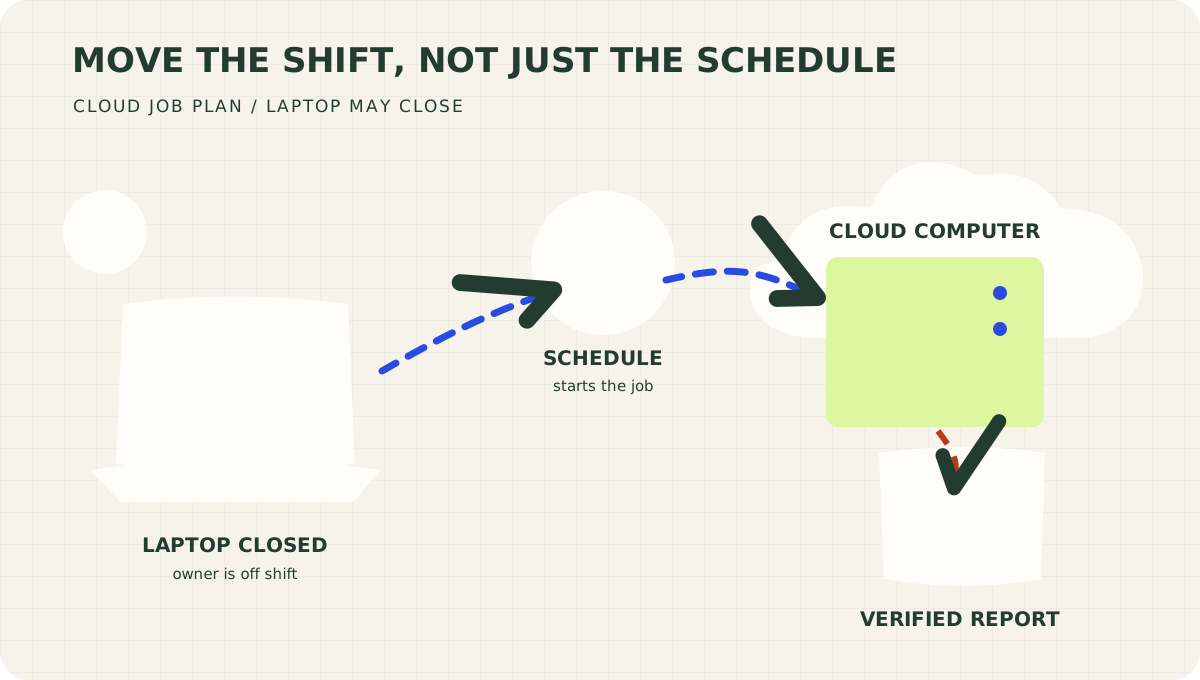
- Laptop closes
- Schedule starts the job
- Cloud computer runs it
- Verified report arrives
In 1907, a Swedish inventor figured out how to make a lighthouse respond to sunset without somebody standing there to operate the light.
Gustaf Dalén's sun valve used a dark metal rod surrounded by shiny ones. Daylight warmed and expanded the dark rod, closing the gas supply. At night it cooled, the gas flowed again, and a pilot flame brought the beacon back to life. Sweden's National Museum of Science and Technology documents the mechanism. Read the museum's account.
No morning meeting. No reminder to check the reminder. No keeper texting, “Sorry, just seeing this. Has it gotten dark?”
Dalén received the 1912 Nobel Prize in Physics for automatic regulators used in lighthouse and buoy lighting. That is an unusually impressive performance review for getting the timing right. Royal Swedish Academy of Sciences.
The light still needed fuel, equipment, and maintenance. What changed was its dependence on someone being present for the routine operation.
More than a century later, that is a useful place to inspect your AI employee.
The employee with your laptop's working hours
You build a useful AI project. It reviews sales activity, organizes content ideas, or turns a collection of numbers into a readable morning brief.
You give it instructions. You improve the output. You put it on a schedule.
Then you shut your laptop and go somewhere with better lighting than your home office.
If the work runs on that laptop, you've found the catch: the employee shares its working hours with the machine.
This can be perfectly useful while you're building and refining a process. The problem appears when you begin relying on a morning result that requires you to prepare the office for it every night.
The next step is to give the job somewhere to run while you're gone.
There are already cloud options. Claude's own documentation distinguishes its cloud routines from Desktop tasks and session-based loops. Its cloud option can run with your machine off. The distinction to investigate is where your particular task executes. Claude's scheduling comparison.
Here, 24/7 means the job can run on its schedule at any hour, even while you and your laptop are offline. Each run starts, completes its assignment, and saves a result.
For this guide, we'll use GitHub Actions. You can keep building the project with Claude Code or Codex. GitHub will supply the computer that performs the scheduled work.
Cron supplies the calendar. Something still has to do the work.
A cron schedule is a compact way to describe when a job should start. Think “weekday mornings” or “every Tuesday afternoon.”
Putting cron on your laptop leaves the job on your laptop. The useful move is putting the schedule and the execution somewhere that can work independently of it.
GitHub Actions can start a hosted computer, give it a copy of your project, and run the instructions you've supplied. That computer is called a runner. In our setup it starts fresh for each job. How GitHub-hosted runners work.
The arrangement looks like this:
Scheduled time → GitHub's computer → Your task → Saved result
Your laptop is how you build and manage the arrangement. It doesn't need to be the place where every shift happens.
You might hear “serverless” or “automation infrastructure” and imagine a room full of people wearing conference lanyards. For this first project, the idea is much smaller: give a computer the instructions to start, finish, and leave you something useful.
Give it one shift with a clear finish line
Start with a task whose result you can inspect.
For example, imagine a business owner who wants a weekday sales brief. The job reads an approved source, identifies overdue follow-ups, and drafts a short list of priorities. It saves the brief for the owner to review.
That is a hypothetical workflow, but the assignment is concrete. You can tell whether it did its job.
“Help me grow my business every morning” is a little harder to put on a timesheet.
Write down four things before moving it:
| Decision | Example |
|---|---|
| What starts the shift? | Weekdays at 7:17 a.m. in Denver |
| What does it read? | Current sales activity from an approved connection |
| What does it produce? | A dated brief with five priorities and supporting records |
| Where do I find it? | A saved report attached to the GitHub run |
The same structure works for a weekly content outline, a report on changing prices, or a summary of new customer feedback.
The first version should earn its place in your day. Pick the recurring result you're already tired of assembling.
The part your chat doesn't pack for you
Your existing project may depend on things you've stopped noticing: a spreadsheet in Downloads, a browser you signed into last week, a plugin available only in your desktop app, or an instruction buried twenty messages above the last response.
A fresh cloud computer needs an explicit way to get what the job requires.
That's why “put this on cron” can be an incomplete request. Moving the schedule takes a moment. Moving the working conditions takes thought.
Have your coding assistant inspect the project and package the essentials: the task instructions, necessary files, installed dependencies, authorized data connections, and somewhere to save the result.
A spreadsheet uploaded once is a snapshot. If tomorrow's brief needs tomorrow's numbers, the job needs a way to fetch them. A browser session on your Mac doesn't become a cloud connection because you gave the folder an ambitious name.
Likewise, the job has to preserve anything it needs next time. If it must remember which records it already handled, give it durable storage. A temporary runner's working folder cannot be its long-term memory.
None of this requires you to become a software engineer. It does require giving the engineer, human or AI, a complete assignment.
The first win is a result you didn't have to start
The beginner walkthrough starts with a deliberately tiny exercise: create a private GitHub project, run a job, and see a timestamped receipt.
That first receipt is a cloud test. It doesn't call an AI model. It lets you learn where the buttons are before connecting a real employee's work.
Then use the setup prompt below in the project you've been building with Claude Code or Codex. It asks the assistant to adapt the actual task, check the dependencies, explain the account setup, and prove the result is saved.
GitHub's interface can look like the cockpit of a small aircraft the first time you open it. You only need a few controls for this flight. The walkthrough includes screenshots of those controls.
The assistant should choose the simplest implementation that does the job. An existing report script may just need a schedule. A task that requires fresh reasoning may use an AI API or a supported agent integration. You don't need to make the entire coding assistant wake up to add three columns.
Make absence part of the acceptance test
An automation demonstration often happens while its creator is watching. That proves something useful, but leaves the central promise untested.
For this project, the acceptance test is practical: after the manual test works, let a scheduled run happen while your laptop is shut down. Later, check the run's time and open the saved result.
If the job sends or changes anything, test what happens when the same run is retried. An enthusiastic employee who sends the same invoice twice has misunderstood the revenue strategy.
For a first project, a saved draft is a comfortable starting point. Add automatic delivery when the destination, contents, and duplicate handling work the way you intend.
GitHub's schedule is suitable for work with some timing flexibility. It can be delayed, and under heavy load queued runs may be dropped. A critical deadline needs monitoring for a missing result and an appropriate recovery plan. GitHub's schedule behavior.
The question is whether the work reliably arrives in time to help you make a decision. A little green checkmark is useful. Opening the right report is better.
Build the employee. Give it a place to work.
An AI employee can have excellent instructions and still depend on the owner to keep its workday alive.
Moving one proven task to a cloud schedule removes that dependency. You can improve the assignment during your working hours and let the next shift begin without you.
Dalén's lighthouse offers a useful analogy for that handoff. The equipment remained. The fuel remained. The responsibility to maintain it remained. The keeper no longer had to operate the light at every sunset.
Pick one recurring task. Define the result. Give it a working environment beyond your laptop. Then verify that the result arrives while you're away.
Your computer deserves to close without taking the whole department with it.
Copy this into Claude Code or Codex
Open the project you want to automate, then paste the brief below. Replace the bracketed details you know. The assistant can help resolve the rest.
Download the setup prompt · Open the beginner walkthrough with screenshots
# Move my recurring AI task to GitHub Actions

Help me make this project run on GitHub-hosted infrastructure when my computer is off. I am completely new to GitHub. Explain unfamiliar terms when they first appear, use short steps, and help me perform the setup rather than giving me a list of things to research.

My task: [What the project should do.]
My schedule and time zone: [For example, weekdays at 7:17 a.m., America/Denver.]
The information it needs: [Files, websites, or connected applications.]
Where I want the result: [A downloadable report is fine for my first version.]
My current project folder or repository: [Location, or use the project already open.]
My budget: [Monthly amount, or help me estimate before enabling paid calls.]

First inspect the project and its working instructions. Identify what already works and the smallest repeatable task we can move. Ask only for missing decisions that affect the implementation. Do useful preparation while I supply them.

Explain which computer will run the job. A cron job on my own laptop or a self-hosted runner on it does not meet my goal. Use GitHub-hosted runners for this setup. If this task requires an always-running service or access GitHub cannot provide, explain the specific mismatch before changing the approach.

Build the complete job, not just a schedule:

- Reuse existing code when possible. Use an AI model only where the task requires it. Choose a currently supported API or official agent integration and verify its documentation, authentication, and version before writing the workflow.
- List every dependency on local files, chat history, browser sessions, desktop plugins, or credentials. Move necessary instructions into project files and establish authorized cloud access to current inputs. Do not assume a desktop connection transfers to GitHub. Explain which inputs are snapshots and which refresh each run.
- Create a private repository if needed, a sensible ignore file, the task instructions, dependency files, the executable job, and the workflow in .github/workflows/. Avoid copying unrelated files or existing secrets.
- Make an initial manual test available with workflow_dispatch. Prepare the recurring cron schedule with an explicit IANA time zone, and show me its meaning in ordinary language. Check GitHub's current support rather than assuming schedules must be UTC. Put the completed workflow on the repository's actual default branch.
- Separate setup credentials from the limited access the recurring job needs. Use repository Actions secrets for required keys. Tell me the exact names and where to enter values privately. Never ask me to paste a key into this chat, put it in source code, or expose it in a screenshot or log. Check whether my chosen authentication uses API billing or a supported subscription token.
- Use minimum permissions and verified, pinned action versions. Avoid untrusted-event triggers in this first setup. Keep fetched content separate from trusted instructions and give the job only the tools its assignment requires.
- Add a sensible timeout, bounded requests or agent turns, failure reporting, and overlapping-run protection. Explain actual spending controls and estimates; do not call an alert or timeout a guaranteed dollar cap.
- Save a dated result outside the runner before it disappears. For a report, an Actions artifact is acceptable; set its retention and show me how to download it. If the job needs memory across runs, implement durable state. If it sends or changes anything, implement a durable duplicate-prevention key and recovery behavior; concurrency alone is not duplicate prevention.
- Begin with a draft or read-only result unless I have specified an automatic external action. Prepare the job and a clear cost estimate before enabling recurring paid work or external delivery.

Guide me through GitHub one screen at a time when I need to act. Give the exact page, tab, field, and button. If browser access is available, inspect the current screen and perform authorized steps. Use screenshots that omit secrets and private data. If you cannot see my screen, say so and use clearly attributed reference images or ask what I see. Never fabricate screenshots or successful runs.

Test the real job manually and inspect the saved output. Include checks for missing credentials, bad input, and repeat execution where applicable. Repair failures before calling the setup complete. After I enable the schedule, help me verify a scheduled result produced while my computer is off. Do not claim that test passed until we have its run record and output.

Leave me a short README with the task, schedule, result location, costs, failure notifications, and instructions to change or pause it. Explain how we detect a missed run if the delivery time matters. Show the repository link, workflow link, first verified result, and any remaining setup step. Distinguish prepared, manually tested, and verified on schedule.
Your first cloud job, one screen at a time
Start here even if you have never used GitHub. We'll make a small job leave a timestamped receipt, then use the launch prompt to move your actual AI task.
What this first exercise does: proves you can start a job on GitHub's computer and find its result. It uses no AI API and needs no API key. GitHub usage still follows your account's Actions allowance.
What you'll need: a GitHub account and a browser. For the actual AI job later, you'll also need the project you've been building and whatever data/model access that task uses.
Screenshots below are reference images from GitHub Docs, used with attribution. They show GitHub's example projects, not a Sevedge Builds deployment. Your project and workflow names will differ.
1. Give the project a home
Sign in at GitHub, then open Create a new repository.
A repository is a project folder GitHub stores online. For this exercise:
- Choose your own account as the owner.
- Name it
my-first-cloud-job. - Choose Private.
- Turn on Add README so the project starts with a file.
- Click Create repository.
You should land on the project's Code page and see its README. GitHub's repository quickstart covers these controls.
2. Add the job instructions
On the Code page, select Add file → Create new file. In the filename field, enter the entire path:
.github/workflows/cloud-check.yml
The slashes create folders. The filename tells GitHub this file contains an Actions workflow. You can also download this practice workflow. Paste the contents below into the editor. Keep the spacing as shown.
name: My first cloud check

on:
  workflow_dispatch:
  # After a successful manual test, remove the next three comment markers.
  # schedule:
  #   - cron: '17 7 * * 1-5'
  #     timezone: 'America/Denver'

permissions: {}

concurrency:
  group: first-cloud-check
  cancel-in-progress: false

jobs:
  receipt:
    runs-on: ubuntu-latest
    timeout-minutes: 2
    steps:
      - name: Leave a receipt
        shell: bash
        run: |
          set -euo pipefail
          {
            printf '# Your cloud job ran\n\n'
            printf 'This is a scheduling test, not an AI-generated report.\n\n'
            printf 'Started at: %s UTC\n\n' "$(date -u '+%Y-%m-%d %H:%M:%S')"
            printf 'Computer: a GitHub-hosted Linux runner.\n'
          } >> "$GITHUB_STEP_SUMMARY"
Click Commit changes. A commit is a saved version of a file. In this new practice repository, save directly to its default branch, normally main. Leave the schedule commented out for the first test. GitHub's file-creation guide.
3. Start the first run yourself
Open the Actions tab across the top of your repository.

Choose My first cloud check in the left sidebar. The reference screenshot below uses a different workflow name; select the name you just created.
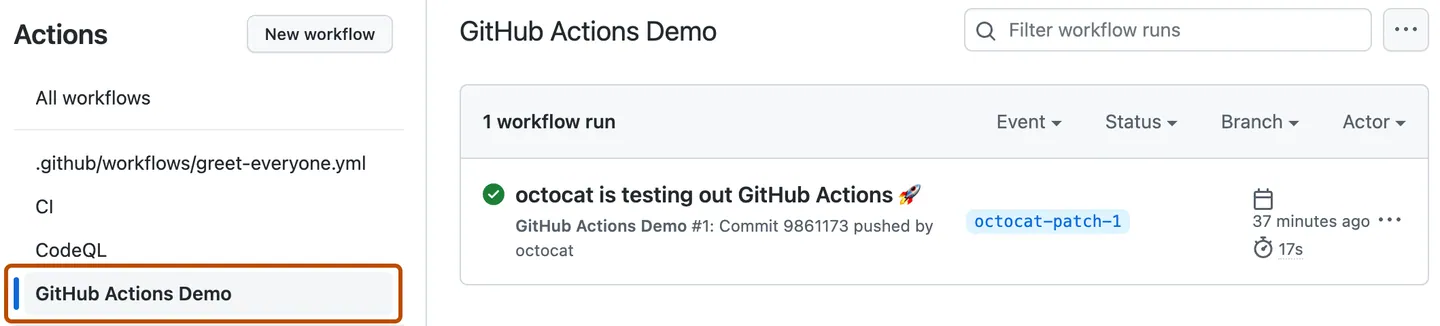
Click Run workflow, select your default branch, then click the confirmation button in that menu.
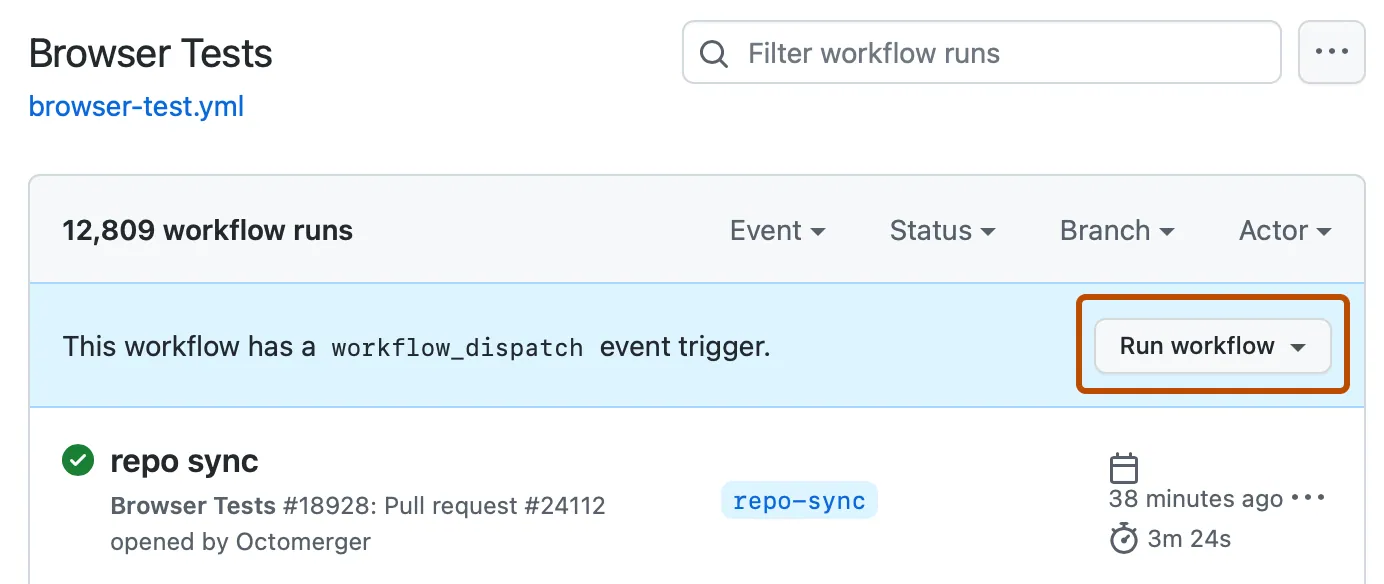
These three screenshots come from GitHub's manual-run guide. If the button is missing, verify that you saved the file to the default branch and included workflow_dispatch:.
4. Open your receipt
Refresh the run list if needed and open the new run. After it finishes successfully, its Summary page should show Your cloud job ran and a UTC timestamp. A green check means the workflow succeeded; read the receipt too.
That is your first cloud execution. Your laptop displayed GitHub's website; GitHub's runner performed the job. The receipt itself cannot tell whether your laptop was open or closed.
If the run fails, open the failed job and expand the red step to read its error. Give that error, with private information removed, to your coding assistant. A workflow rejected before it starts usually needs its filename, spacing, or configuration corrected.
5. Give it a schedule
Return to Code, open .github/workflows/cloud-check.yml, and edit it. Remove the # characters before the three schedule lines. The top of the file should now read:
name: My first cloud check

on:
  workflow_dispatch:
  schedule:
    - cron: '17 7 * * 1-5'
      timezone: 'America/Denver'
Save the change. This requests a run at 7:17 a.m. every Monday through Friday in Denver's time zone. Change the zone and schedule to yours. With no timezone, GitHub uses UTC. The receipt always prints UTC so its time label remains unambiguous.
The file must be on the default branch. GitHub may start scheduled runs late or drop them under heavy load; this is not a precise alarm clock. Public repositories also have a 60-day inactivity rule that can disable schedules. GitHub's schedule reference.
For a sooner test, ask your assistant to calculate a recurring time a little ahead in your zone, then remove that temporary schedule afterward. Don't confuse a manual button click with a successful scheduled run.
Shut down your laptop before a scheduled run. Later, open GitHub from your phone or restart your laptop. Find the run marked as scheduled and check its timestamp and receipt. That combination, plus knowing your laptop was off, verifies the point of the exercise.
6. Replace the receipt with useful work
Open your actual project in Claude Code or Codex and paste the launch prompt. It asks the assistant to package the working task, build a suitable workflow, and guide you through its setup.
For your first real job, a saved content outline or a draft report makes the result easy to inspect. Be specific about what it should read and what a good result contains. The receipt job isn't an AI employee yet; this step adds the real work.
Your assistant should tell you whether it needs a model credential. The official Codex action uses a provider API key. The official Claude Code action documents API-key authentication and a supported Claude subscription token option. Follow the route selected for your job; don't assume your desktop login is available to GitHub.
If a key or token is needed, your assistant should give you its exact secret name. In your repository, open Settings:

Under Secrets and variables → Actions, use the Secrets tab and select New repository secret.
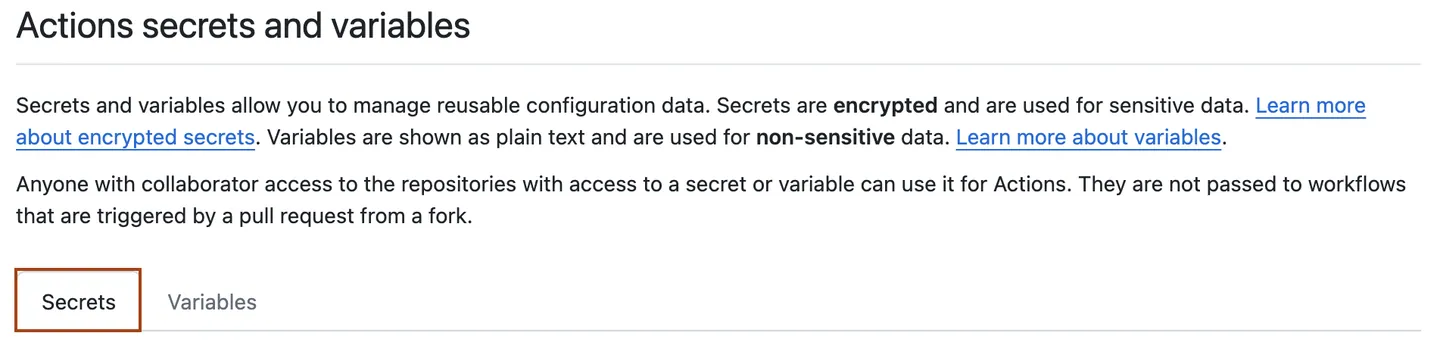
Enter the specified name and paste the credential directly into GitHub's secret field, then select Add secret. Keep the value out of chats, code, and screenshots. These two reference images are from GitHub's secret setup guide.
Run the real workflow manually and inspect its saved result. If the assistant uses an artifact, that means a downloadable file attached to the run: open the run's summary, find Artifacts, and download the named report. It has a retention period; use a permanent destination for records you need to keep. Downloading artifacts.
7. Know the cost and the off switch
There can be two separate usage meters: GitHub's computer time/storage and the AI provider's usage. Included GitHub allowances depend on the plan, while API calls follow the provider's billing. Ask your assistant for an estimate using your actual frequency and expected job size. Review the applicable usage controls before enabling the real schedule. GitHub Actions billing.
To pause a workflow, open Actions, choose the workflow, open its … menu, and choose Disable workflow. If a run is already in progress, cancel that run separately. Disable the practice workflow when you're finished. GitHub's disable/enable instructions.
For the real task, turn on appropriate failure notifications and decide how you'll notice a missing result. A failed run can produce an alert; a run that never started may need a separate check. Have the assistant document both where the result lives and how you know it arrived.
Screenshot credits
Five unchanged reference screenshots: GitHub Docs, copyright GitHub and contributors, CC BY 4.0, as provided under the GitHub Docs license. Source pages are linked beside the relevant steps. Images were collected September 10, 2026. GitHub may change its interface. Use the control labels as well as the pictures.